Showing posts with label pictures. Show all posts

Thursday, August 24, 2017

Topic 10 !! (cont.) - SmartBuilder (Finishing and Publishing Courseware)

Hey there~
This might be my last entry for this blog, so I am bit sad.
(No, seriously!)


Well, over with the tears for a moment, let me revised the last steps of my journey in creating an 
e-Learning Courseware.

After we have done with audio, hotspot, images, questions pages and stuff, we need to check again the flow of the courseware and all went well.
I just cannot believe that it actually requires almost A MONTH for us to settle this baby of ours. 
(Well, it could have been much better if we spend more time for it)

Now, I will share a bit on how to publish your completed courseware!
Let's go!

First, you go to the taskbar, you click on the 'File' and you'll see 'Publish' option. Don't waste time and just click on it!
After you've click on it, this will pop out!


There is a blank space where you need to write your courseware title.
*Here is a warning! Before you click on the publish, make sure you saved your courseware with the CORRECT TITLE that you wanted it to be. If not, it might keep the saved name of your courseware eventhough you type in the title in the box above. Just a bit reminder because that what happened to us LOL! *

Next, after you've waited for the green thing (percentage done) to reach 100%,
you will meet with this box!


It said your lesson published succesfully! Yeay!
BUT! We are still not done!
You click on the 'Upload and View Online' button, 
and it will bring you straight to the SmartBuilder website.
*Oh ya! They will ask for your SmartBuilder ID first, so just sign when asked to do so*


Wait (again!) until it reached 100%.....


Walla~~ 
You can view your lesson online!
Click on that button for you to get your lesson link!


See that LINK?
That's my group's courseware link! We got one!


And that is how you publish you courseware online.
All three of us somehow felt like being a developer hah! (just a bit~ *wink2* )

So, before I put my pen down -or should I say stop typing- here are some teaser for our
e-Learning Courseware. I will provide the link too, don't worry!


LINK TO THE LESSON : ON THE FARM


And that's it!
Thanks for all the time you have spent reading and scrolling over my blog.
I felt so grateful and thankful when you read my posts.
May we meet again, somewhere....maybe in different blogs? Who knows~

Once again, THANK YOU SO MUCH!
This was Dani.


Bye!

Friday, August 11, 2017

Topic 10 !! (cont.) - SmartBuilder (Creating Questions Page)

Okay, here I am, once again!
Hi everyone!
Back again with SmartBuilder101.
Nahh just kidding~
9


This time, we are going to create questions page.
After learning on how to add image, background, button, hotspot, audio and stuff,
FINALLY!
Question Time~~

It is quite easy on how to create the question page.
Go to the tabs, you will find 'Template' button.
Click on it, and apply template.


And choose what type of questions you want to create.
For now, there are;
- Matching
- Multiple Choice
- True and False
- Categorize
- Fill in the Blanks
- Multiple Responses
- Drag Down


There is many ways you can do in creating the question.
Just need to
Release Your Creativity!


So, I'll put down my hat for now.
Been so busy doing assignments and presentation stuff
Huhuuu

Until we meet again,
Bye peeps!
full body keroppi frog emoticon 5

Tuesday, August 8, 2017

Topic 10 !! (cont.) - SmartBuilder (Insert Audio and Moving Image)

Well, hello there!
Continuing from the presvious entry, it will be about SmartBuilder again~
wehee~
Nhoc Cashmere002


After learning the basic on how to start the SmartBuilder on the last entry, this time our lecturer taught on how to add audio and to make moving image (other than inserting gif).


First, on adding the audio.
Just imagine when you start to play a game software.
You will meet the main page or welcome page, then you can click on the button start/enter or whatever button available on it.
Some games, they have audio blast off from the moment the game start.
Some games, after you have click enter, then the audio will play.

SO!
In order to put audio in the game course, there are 2 ways!
1. If you want the same audio/song/soundtrack to be played until the player stop playing the game, insert the audio on the master slide. That way, the audio will keeeeeeppp on playing until the end.
2.If you only want the audio/sound to come out at certain time/page, then you can insert the audio directly at the page you wanted it to be played.

SIMPLE!!

Second, on making a moving image.
This part, quite difficult.
But my lecturer explained it in a simple way, where;
1. You will need to objects. (one that in static, another will pop out on the static object).
2. The first object can be image / button / shape / gif.
3. The second object (that will 'animate' later) can be image / button / shape / gif / text.
4. After that, it is up to you to change the percentage of the transparency, the type of lines, the position whether to be at front or back, etc,


*Attention! - If the first object is in 'TEXT' form, here you will need the help of hotspot.
Hotspot is just a medium for the object to be able to work as a 'trigger'.


That's all for today!
Fuuhhh~
soldier baby

I will continue again later, so!
Bye~

Wednesday, August 2, 2017

Topic 10 !! - SmartBuilder (Intro) -

Hey there!
137
New topic this week, and it is so so so new, that I don't know where to start.
I'll try my best!

First, we learnt about SmartBuilder ! <<Click to go to the link!


It is a software where you need to sign up, and you can download it in your PC/Laptop.
(It supposed to be free forever, but somehow, it's not free anymore.... T-T)

For your information, we need to learn this for our last assignment, which is to create our
e-Learning Courseware.
b10

Using this app, you will apply your creativity in creating 'hyperlink', where it is about trigger and action.
If the mouse pointer click the button, then it will bring you to other page.
If the mouse pointer hover at the button, then it will produce sound or change picture.
The options you can use for 'Trigger & Action'.

In a simple way, you can create a language learning game in a creative and interesting way!
And any kind of simple games!

It was so much fun learning how to build your own game, but at the same time, it was soo hard to make sure your creating is working well.

SmartBuilder works just like you attach Lego with other Legos, and the result could be something very cool! You need to attach the 'body' with the action you want the it to be.
Luckily we don't have to go through coding and stuff hehee...


So, I guess that is for the introduction about SmartBuilder.
I'll post more about SmartBuilder with different sub-topics on how to mingle and playing around this amazing software.

Till then,
bye bye~
41

Sunday, July 30, 2017

Topic 9 !! - Creating A Blog Title using Canva -

Hey there!

The upcoming weeks will get so busy, so I'll post a simple entry here.

This week, we learnt on how to edit / create our own picture by using Canva. << click on it to go the site.

Specifically, we have to create our own BLOG TITLE !!

Through Canva, you can choose to do many kind of things.
From Blog Title, Poster, Photo Collage, Instagram Post, Wallpaper, ANYTHING!
Just choose your desire~


Here, I choose the Blog Title customs.


After adding pictures here and there, choosing my favorite kind of font, I'm done!


If you ever realized, or you just saw it now, I HAVE A NEW TITLE PICTURE FOR MY BLOG!!
Yeayyyy!!


So!
There you go!

Till we meet again,
Adios!

Friday, July 21, 2017

Topic 8 !! - Educational Video (POWTOON) -

Heyya!
I'm back!
ch016

This week, we learnt about


Basically, we need to learn this PowToon for our next assignment which is create an Educational Video.
It was a lot of fun doing the video with my other teammates; Ain  and Kiran.
Still, creating something takes A LOT OF TIME! Seriously!

We stayed back for quite few days to brainstorm the idea on what topic we wanted to do and stuff.
I'll show you some simple steps on how to use this PowToon thingy.

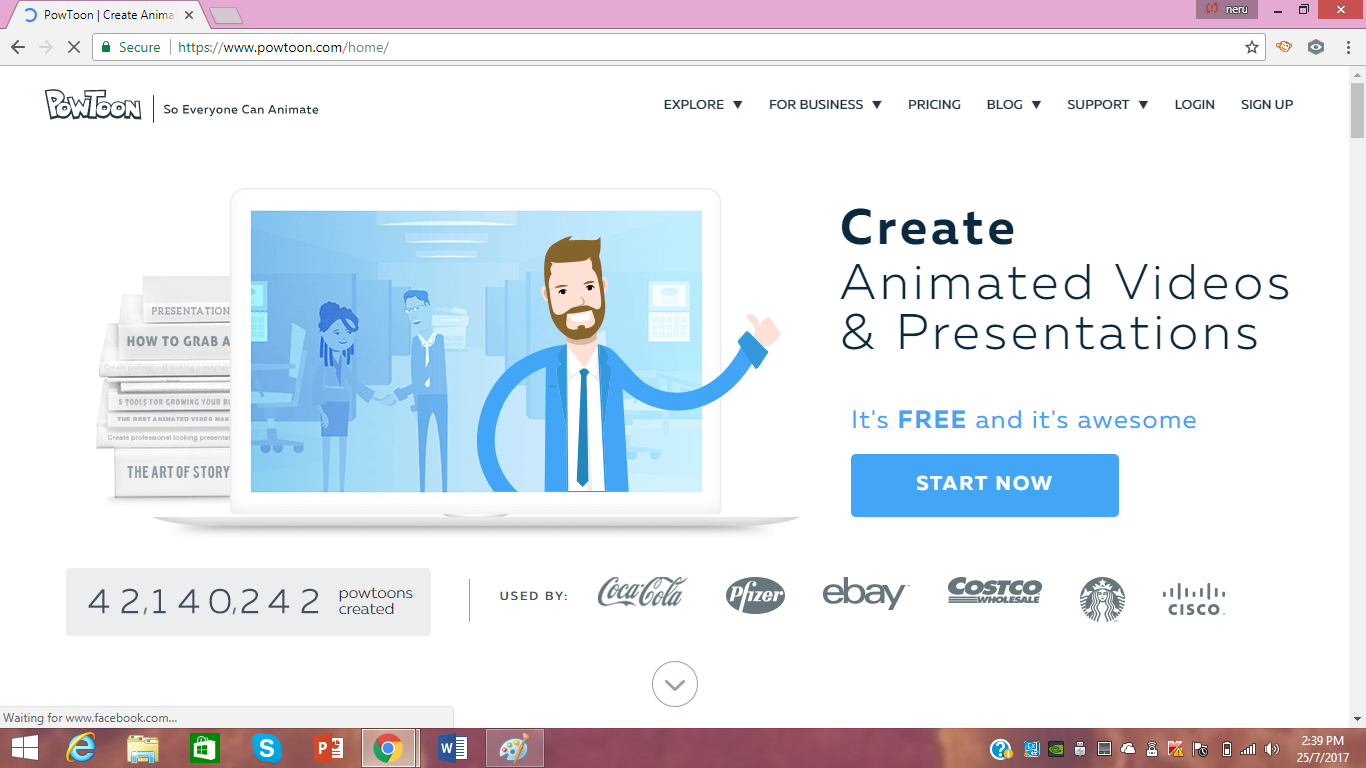
1. Go to the link https://www.powtoon.com/home/

Click on the 'Sign Up' and just follow the instructions.

2. You go to your PowToon homepage

You can choose to do your slides/video from scratch, or arrange the patterns prepared, or using the prepared templates.

3. Choose your own category.


4. Be creative!!

Let say, I choose this kind of template.

All the words, images, icons, transition, movement - they're all UP TO YOU!

You can choose different types of fonts, sizes, colors, transitions for the text. 

You can choose different background for the slides.

You can choose the characters you wanted! Most of the characters have other
movements that you can choose up to your liking

Lastly, you can also insert your OWN VOICE by clicking on the 'sound' part.
Looks fun, right? Believe me, it was a lot a fun doing it when you have the idea of what you want to do.
SO!!
Go and unleash your creativity!

Before I end my post for today, I would like to share with you the video that my group has created using PowToon.


That's all for now!
See you later!
wink

Monday, July 10, 2017

Topic 7 !! - Using Podcast and Digital Storytelling for Language Learning -

Hi there!
029

That was a long topic name, huh?
However, I kinda like this topic, because it is about using podcast.


What is podcast, again?
The term ‘podcast’ comes from 'iPod'  and ‘broadcast’.
You combine them together, walla! Podcast!
Usually, it is in audio form, with the format of (.mp3).
Easily downloaded from podcast sites, or you need to pay for some sites. Depend.

I remember using podcast once when I was like 17 or 18, because at that time smartphones started to 'enter' my school life so many of my classmates have one, and they downloaded podcast into their phone to be used as listening revision. Such hardworking friends  I got back then! Haha!


Of course, when I started to enter Diploma life, everything will require you to have listening test, again, you need podcast. Even MUET! They actually used something like podcast for the listening test. 


So, you can see that podcast gives you 2 options; whether you want to use it as revision for listening skills, OR!

You can create a podcast yourself to enhance your speaking skill. << ececechhhh LOL!

Want to start a podcast? VERY EASY!!

First, record your voice using a recording tool/your smartphone/online voice recorder.


Second, edit your recording using Audacity/TwistedWave/AudioTrimmer/Windows Movie Maker/any audio editor.


Third, upload/post your podcast via YouTube, SoundCloud, iTunes or even your own blog!

(I'll upload mine later! I promise!)


  • My podcast (coming soon)
Short Story 'It's Going To Rain' by Enid Blyton


So, that's all for now!

I'll post again!
b16

Closing the Blog (for now, maybe?)

Greetings to all my readers! It haven't been that long since my self-claim last entry. And here I am, forgetting the most important ...